Skip to content

PKPASS to PDF: Convert a .pkpass File to PDF

Open your .pkpass file below to preview the pass, then export it as a print-ready PDF. The file is read in your browser and never uploaded.

Convert PKPASS to PDF

or drag it here

Free, no sign-up. The file is read on your device and never uploaded.

To get a PDF: open your pass here, then use the Print-ready PDF panel under the preview. The preview is free; the PDF itself is paid, from US$4.90.

Print-ready PDF export, from US$4.90 for 30 days. See pricing.

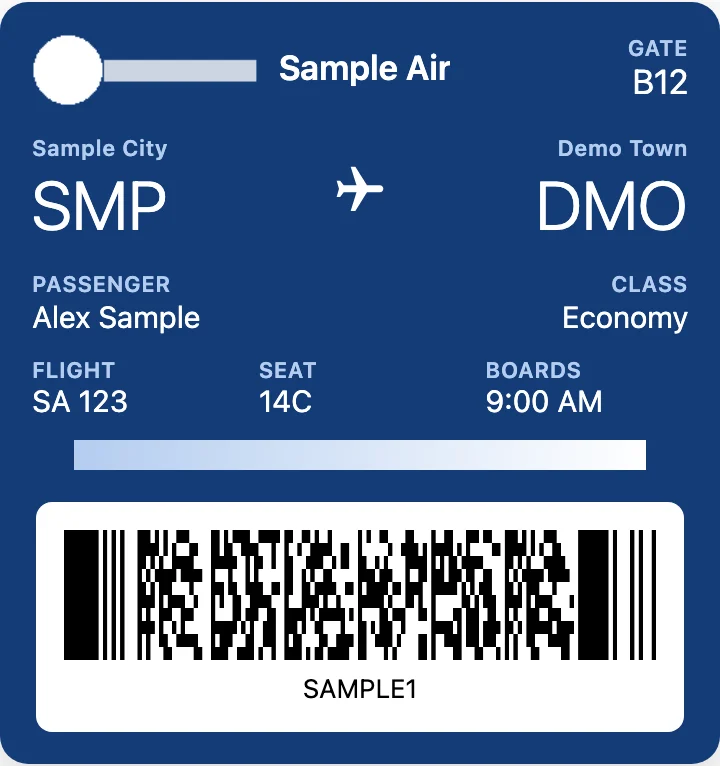
Sample boarding pass from a .pkpass file, previewed in PKPASS Viewer before it is exported as a PDF
A sample boarding pass .pkpass file previewed before PDF export (made-up data).

What the PDF gives you that the free viewer doesn’t

The free viewer shows one pass at a time and saves it as a PNG image. PKPASS to PDF turns what you opened into pages for paper:

  • Print-ready pages on A4 or US Letter paper.
  • 1, 2 or 4 passes per page, with every pass you opened, or a whole .pkpasses bundle, in one file.
  • The barcode embedded at full resolution as a lossless image, so it stays sharp on paper.
  • The back of each pass on its own panel, if you tick the option.

You can check the layout first. Once a pass is open, the Print-ready PDF panel shows a small, watermarked preview of page 1 for the paper size and passes per page you choose. It is only a picture to check the layout; the PDF is made at print resolution after you unlock the export.

How to convert a PKPASS file to PDF

  1. Get the .pkpass file. Save the attachment from your email to your phone or computer. A .pkpasses file with several passes also works.
  2. Open it above. Drag the file onto the box, or click Choose a .pkpass file. You can pick several files at once. If several passes are open, pick any one to preview; the PDF still includes all of them.
  3. Check the preview. You see the front of the pass and its barcode. The back of the pass and the raw pass.json are under it.
  4. Set up the PDF. In the Print-ready PDF panel choose A4 or US Letter, choose 1, 2 or 4 passes per page, and tick the box if you want the back of each pass included. The preview of page 1 updates as you change them.
  5. Unlock the export. PDF export is a Trip Pass (US$4.90 once, valid 30 days) or Pro (US$6.90 a month or US$39 a year). Choose a plan in the panel; after paying, the export unlocks in your browser on its own. If it does not, paste the license key from your email into Enter license key and press Activate. The key is remembered in that browser. See the PKPASS to PDF pricing for what it covers.
  6. Press Download PDF. The PDF is made on your device and saved as a file.
  7. Test the printout. Point your phone’s camera or a barcode scanner app at the printed barcode and confirm that it reads before you rely on it.

What is free and what the PDF export adds

What is free and what the PDF export adds
What you wantFree viewerPKPASS to PDF (paid)
Open .pkpass and .pkpasses files, see the pass and barcodeYesYes
Save the pass as a PNG imageYesYes
Print-ready PDF on A4 or US Letter–Yes
1, 2 or 4 passes per page, several passes in one file–Yes
Barcode embedded as a sharp image for printing–Yes
Back of each pass included (optional)–Yes

PDF export is a Trip Pass (US$4.90 once, valid 30 days) or Pro (US$6.90 a month or US$39 a year). A license key works in up to 3 browsers or devices.

Free ways to get a PDF from a pkpass, and how they compare

  • Save as PNG, then print to PDF. This costs nothing. Save the pass as a PNG (what the PNG contains) and print the image to a PDF printer, such as Microsoft Print to PDF on Windows 10 and 11. You get one image per file and set the layout yourself. The Windows guide has the steps: open a pkpass file on Windows.
  • The PDF export on this page. It lays out the passes for you, with paper size, several passes per page and the barcode placed as a sharp image. It is the paid option.
  • Renaming the file to .zip. A .pkpass file is a ZIP archive, so you can unzip it. You get pass.json and images, but no drawn barcode and no pass layout, so there is nothing to print as a ticket.
  • Online converters that take an upload. A pass often contains your name, booking reference and barcode. This page never sends the file anywhere.
  • The airline’s or seller’s own PDF. Some senders also offer a PDF ticket. If the original email has one, use it.

Print a boarding pass or ticket from a PKPASS file

The PDF is for people who want paper: a boarding pass without an iPhone, a backup if the phone battery dies, or several tickets on one page for a group. A few things help the printout work:

  • Print at 100% or “actual size”. Settings that shrink the page make the barcode smaller and harder to read.
  • Use a dark, clean print. A faint or smudged barcode may not scan.
  • Scan the printed page with your phone before you leave.
  • Keep the printout safe. Anyone who has a copy of the barcode can present it.

What we tested: we exported made-up sample passes with QR, PDF417, Aztec and Code 128 barcodes, turned the PDF pages into images at 150 and 300 dpi, and read them with a barcode-reading library. At A4, 1 pass per page, all four decoded to the exact text in the pass at both resolutions. At 2 or 4 passes per page, the dense PDF417 code was harder to read in a few cases, so for a boarding pass 1 per page is the safe choice. This was a software test on scan images, not a test of a printer and a phone camera, so scan your own printout too.

On a phone? See how to open a pkpass file on Android. The PKPASS viewer page covers the free viewer in full.

Convert a pkpass file to PDF without uploading it

Many “pkpass to PDF” tools ask you to upload the file. This one doesn’t. The file is unzipped and drawn in your browser tab, and the PDF is built there too, using a PDF library that loads only when you press the export. Your pass, the PNG and the PDF are never sent to a server. The only thing that goes online is the license check for the paid export, which carries the key and an ID for this browser.

Limits of a PDF made from a pkpass file

  • It does not add the pass to Apple Wallet or Google Wallet. You get a PDF, not a wallet entry. That means no lock-screen reminders and no automatic updates.
  • The PDF does not update. Some passes are updated by the issuer after you receive them, for example after a gate or time change. A PDF made earlier will not show that. Check the airline’s app, website or departure boards.
  • Some issuers may not accept paper. Some airlines, venues and events may only accept their own printed document or their own app. Check the issuer’s rules.
  • NFC passes don’t work on paper. Some cards may be meant to be tapped on a reader. A printout can’t do that.
  • A pass that renders isn’t proof that it’s valid. The converter shows what is in the file. Only the issuer’s scanner decides whether the pass is accepted, expired or cancelled.
  • The look may differ slightly from Wallet. The layout follows the pass’s own style, fields and colours, but it may not match an iPhone screen exactly.
  • Damaged or non-pass files can’t be converted. If the file isn’t a valid pass archive, or pass.json is missing or broken, there is nothing to draw. Download the attachment again from the original email. The format is described in Apple’s Wallet Passes developer documentation, and summed up on our pkpass file format page.

FAQ

Not affiliated with Apple, Google, Samsung or Microsoft. Product names are trademarks of their owners and are used only to describe compatibility.