Skip to content

PKPASS to PNG: Save a Pass as an Image

Open your .pkpass file below and press Save as PNG to get the pass, barcode included, as a picture for your gallery or printer. It is free and the file is never uploaded.

Save your PKPASS file as PNG

or drag it here

Free, no sign-up. The file is read on your device and never uploaded.

Open the pass, then press Save as PNG under it. Free, and nothing is uploaded.

Print-ready PDF export, from US$4.90 for 30 days. See pricing.

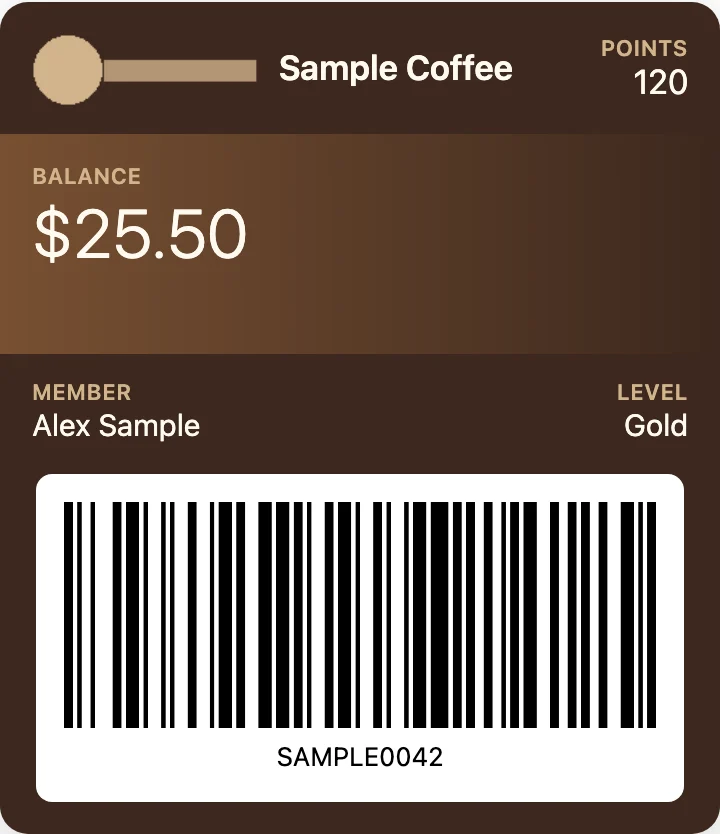
Sample store card from a .pkpass file in PKPASS Viewer, the card and barcode that Save as PNG turns into an image
A sample store card in the viewer (made-up data). Save as PNG draws the same card, barcode included, as an image.

How to save a pkpass file as a PNG image

  1. Save the .pkpass attachment from your email or messaging app to your phone or computer.
  2. In the box above, click Choose a .pkpass file and pick it, or drag it onto the box.
  3. If the file holds several passes (a .pkpasses bundle, or several files picked at once), the viewer lists them. Pick one. Save as PNG saves the pass you picked.
  4. Check the pass and the barcode, then press Save as PNG.
  5. The image goes to your Downloads folder or your browser’s save location, with a name like pass-SAMPLE-AIR-123.png, taken from the pass’s serial number.

Everything happens in your browser tab. You can try it with Try a sample pass first.

What is inside the PNG, and how big it is

What is inside the PNG, and how big it is
PartIn the PNG?
Front of the pass: logo, colors, header, primary, secondary and auxiliary fieldsYes
Strip, thumbnail, background or footer image, where the pass style uses oneYes
Barcode, in a white box, with its alt text under itYes
Back of the pass and the raw pass.jsonNo (shown on the page only)
A VOID mark, if the issuer marked the pass voidYes

The PNG is 1080 pixels wide, three times the card’s 360-unit layout width. The height depends on the pass: our five sample passes (a boarding pass, a store card, an event ticket, a generic pass and a coupon) came out between 1177 and 1673 pixels tall, measured on 2026-10-12. The file has a transparent background outside its rounded corners. At 300 dots per inch, 1080 pixels print about 9 cm (3.6 inches) wide, which is our own arithmetic. If a pass has several barcodes, the viewer draws the first one it supports, in line with Apple’s rule that the system uses the first displayable barcode (Apple’s pass.json reference).

Can you scan the saved PNG at the gate?

The barcode in the PNG is drawn from the data in the pass, and QR and Aztec codes are drawn 570 pixels wide and the other formats 900 pixels, so it is large. Whether an airline, venue or shop accepts a code shown from an image is up to the issuer, and we can’t tell you for yours, so follow the issuer’s requirements. To check the image itself:

  • Open the PNG on your phone, turn the screen brightness up and scan it with another phone’s camera.
  • Don’t zoom or crop the barcode, and keep the white box around it.
  • If you print it, print at 100% and scan the printout before you leave home.
  • Keep the issuer’s app or the original email as a backup.

Need a JPG? Convert the PNG

The viewer saves PNG only. For a JPG, open the saved PNG in any image editor or photo app that can export JPEG, and save it as JPG at the highest quality. JPEG is lossy, so very fine bars can blur at low quality, and it has no transparency, so the transparent corners are filled with a solid color. Keep the PNG as your master copy and test-scan the JPG.

Print it, or get a PDF instead

  • Print the PNG. Free. Open it and print at 100%. On a PC, the open a pkpass file on Windows guide has the steps.
  • A print-ready PDF. The paid export puts one, two or four passes on an A4 or US Letter page, can add the back of each pass and embeds the barcode as a sharp image. It is paid (from US$4.90). See convert a pkpass file to PDF.
  • Send it to someone. A PNG opens on any phone or computer. Anyone with a copy of the barcode can show it, so send it only to people who should have it.

When a PNG is not the right copy of a pass

  • It is a snapshot. Apple says an issuer updates a pass by sending a new version, and a pass can name a web service for updates (Apple’s “Distributing and updating a pass”). A PNG does not change. Check the airline’s or seller’s app for gate and time changes.
  • Passes you tap. Apple’s page says you can scan or tap your iPhone at a contactless reader (Apple’s support article “Add, use, and share tickets and passes in Apple Wallet”). An image can’t be tapped.
  • The barcode may be missing. If the pass has no supported barcode, or its data does not fit the barcode type, the viewer says so and the PNG has none. Look at the saved image.
  • It does not prove the pass is valid. The viewer draws what is in the file and does not check the signature. Only the issuer’s scanner decides.
  • The file won’t open. There is nothing to save yet. See fix a pkpass file that won’t open.

Save as PNG, screenshot or add to Wallet

A screenshot of the viewer also works, but it includes the page around the pass and depends on your screen size. Save as PNG gives a clean card at a fixed 1080 pixels wide. Neither adds the pass to a wallet. On an iPhone, see how to open a pkpass file on iPhone and Mac. On a phone with no wallet app for the file, see how to open a pkpass file on Android. Back to the PKPASS viewer page.

FAQ

Not affiliated with Apple, Google, Samsung or Microsoft. Product names are trademarks of their owners and are used only to describe compatibility.