Skip to content

PKPASS File: What It Is and What Is Inside

A .pkpass file is an Apple Wallet pass saved as one file. Open one below to see its pass, barcode and raw pass.json, then read how the format works.

Open a pkpass file to look inside

or drag it here

Free, no sign-up. The file is read on your device and never uploaded.

Print-ready PDF export, from US$4.90 for 30 days. See pricing.

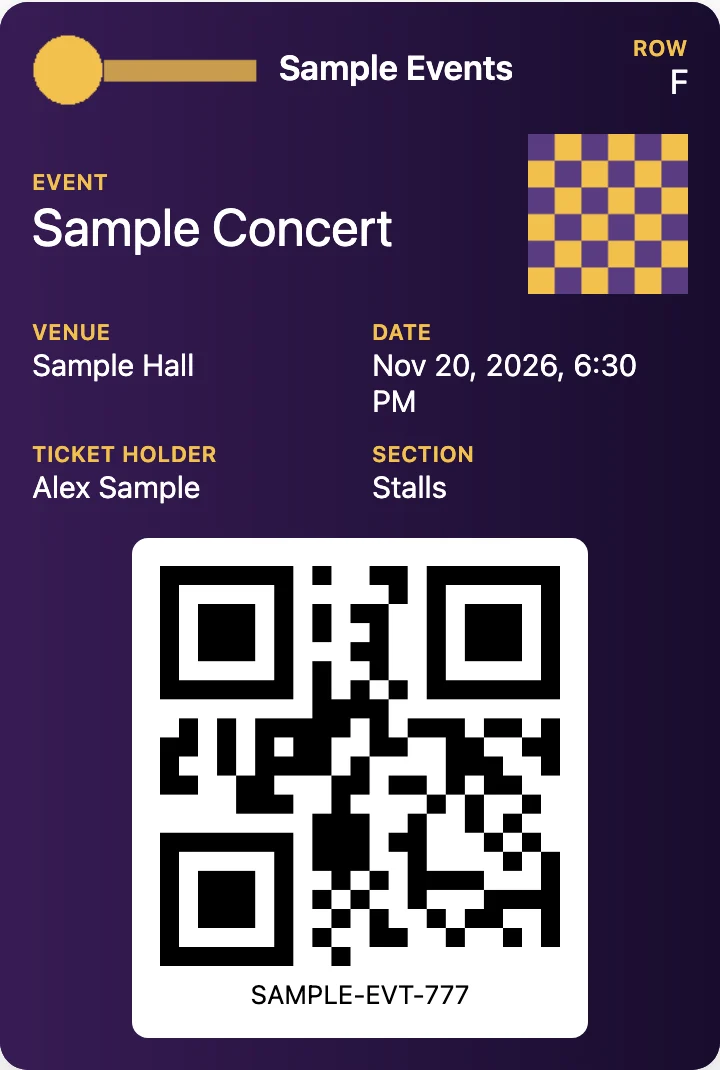
Sample event ticket opened from a .pkpass file in PKPASS Viewer, with its fields and barcode
A sample event ticket .pkpass file opened in this viewer (made-up data).

What is a .pkpass file?

A .pkpass file is the file format behind a pass in Apple Wallet: a boarding pass, an event ticket, a coupon, a store card or a membership card. Apple describes the pass you give to a person as a signed bundle that contains the JSON description of the pass, its images and optional localizations. To make one, the issuer zips that folder and changes the extension from .zip to .pkpass (Apple’s “Building a Pass”).

So a pkpass file is a ZIP archive with a fixed set of contents. Airlines, event sellers and shops email or offer it as a download; on an Apple device Wallet reads it. Everywhere else you need a reader such as the viewer at the top of this page. The format is documented in Apple’s Wallet Passes developer documentation.

What is inside a pkpass file

What is inside a pkpass file
FileWhat it holds
pass.jsonThe pass itself: the text shown on it, its barcode data, colours, dates and the pass style.
manifest.jsonA list of every other file with its SHA-1 hash, keyed by path.
signatureA PKCS #7 detached signature of the manifest, made with the issuer’s certificate.
icon.pngRequired. Shown on the lock screen and in Mail when a pass is attached to an email. About 29 × 29 points.
logo.pngTop left corner of the pass, next to the logo text. Up to 160 × 50 points.
strip.png, thumbnail.png, background.png, footer.pngOptional pictures: behind the primary fields, next to the fields, behind the whole front, and near the barcode.
en.lproj/, fr.lproj/ …One folder per language, with a pass.strings file and any images that differ by language.

Apple’s sizes are in points, not pixels. On a standard display a point is one pixel and on a Retina display it is two or three, so Apple asks for the original, @2x and @3x version of each image, for example logo.png, logo@2x.png and logo@3x.png. A 29-point icon is therefore 29, 58 and 87 pixels wide (multiplication, not an Apple table). The roles and sizes come from Apple’s archived Wallet guide “Pass Design and Creation”.

Localization works in two parts. Each language gets a folder named with its language code and an optional region, such as fr.lproj or zh-Hans.lproj. Inside, pass.strings maps the keys that pass.json uses to the translated words, and Apple says to save a strings file with non-ASCII text as UTF-16 (Apple’s “Creating the Source for a Pass”). This viewer reads pass.strings in UTF-8, or in UTF-16 when the file starts with a byte-order mark, uses the en.lproj text when the pass has it (otherwise another English variant, otherwise the first language alphabetically), uses a top-level image before a localized one as Apple describes, and picks @2x images before @3x and plain ones.

What pass.json holds: required keys and fields

Apple marks six top-level keys as required: description, formatVersion (the value is 1), organizationName, passTypeIdentifier, serialNumber and teamIdentifier. The pass type identifier and serial number together identify one pass. Every key is listed in Apple’s pass.json reference.

The text on a pass sits in fields, grouped as header, primary, secondary, auxiliary and back fields (Apple’s PassFields reference also lists an Additional Info group below the pass). The front has little room, so back fields carry the long text such as terms, addresses and contact details. This viewer draws the header, primary, secondary and auxiliary fields on the card, puts the back fields in the Back of the pass panel, and shows the whole file under Show raw pass.json. It does not draw the Additional Info group. It also lists the relevant date and the expiry date when the pass has them, and marks a pass that the issuer set to voided with a VOID stamp and a “Voided by the issuer” line.

Pass styles: boarding pass, event ticket, coupon, store card, generic

A pass picks its layout with one style key at the top level of pass.json. Apple’s archived guide describes what each one is for:

Pass styles: boarding pass, event ticket, coupon, store card, generic
KeyMeant for
boardingPassTrain tickets, airline boarding passes and other transit; usually one trip with a start and an end.
eventTicketEntry to a concert, movie, play or sports event, or a season ticket.
couponCoupons, special offers and other discounts.
storeCardStore loyalty, discount, points and gift cards; show the balance if the account has one.
genericAnything that does not fit the others, such as a gym membership.

This viewer reads the same five keys. If pass.json has none of them, it says the file is not a known pass style instead of guessing. Which pictures appear also follows the style: the logo always, the strip on event tickets, coupons and store cards, the background and a thumbnail on event tickets without a strip, a thumbnail on generic passes, the footer on boarding passes. It does not draw icon.png, since that image is for the lock screen and Mail.

Barcodes in a pkpass file: formats and how they are stored

A pkpass file holds no barcode picture. pass.json stores the barcode as text (the message), together with its format, a messageEncoding and optional altText to show beside it, and which Wallet turns into the code on screen. A pass can list several barcodes in barcodes, and Apple says the system uses the first one that can be displayed on the device; the older single barcode key is deprecated. Apple’s format values are PKBarcodeFormatQR, PKBarcodeFormatPDF417, PKBarcodeFormatAztec, PKBarcodeFormatCode128, PKBarcodeFormatCode39, PKBarcodeFormatCodabar, PKBarcodeFormatEAN13 and PKBarcodeFormatI2of5 (Apple’s Pass.Barcodes reference).

This viewer draws all eight formats. It takes the first entry of barcodes and falls back to the old barcode key. If the data in a pass does not fit its format, the viewer says so instead of drawing a wrong code.

Why a pkpass is signed, and why editing breaks it

Apple’s guide says signing establishes who made the pass and lets customers be sure it has not been modified since it was signed. The mechanism is in the two files described above. The manifest stores a hash of each file, and the signature is made over the manifest with the private key of the issuer’s pass type certificate. Change a picture or a field in pass.json, and its hash no longer matches the signed manifest. Updating the manifest means a new signature, and only the holder of the certificate can make one: Apple says the pass type identifier in pass.json has to match the certificate that signs the pass (Apple’s “Building a Pass”).

That is the reason this site shows passes and does not offer editing. It also does not verify signatures, so seeing a pass here does not mean it is genuine or still valid.

.pkpass vs .pkpasses, and the MIME type

A .pkpasses file is a ZIP of .pkpass files with the extension changed, used to hand over several passes in one download. Its MIME type is application/vnd.apple.pkpasses, and Apple’s limit is 10 passes or 150 MB per bundle (Apple’s “Distributing and updating a pass”). A single pass uses application/vnd.apple.pkpass, which Apple’s archived guide says Mail and Safari expect (Apple’s archived Wallet guide “Distributing Passes”). This viewer opens bundles of up to 20 passes and files up to 20 MB, and lists the passes so you can choose one.

How to open a pkpass file on your device

FAQ

Not affiliated with Apple, Google, Samsung or Microsoft. Product names are trademarks of their owners and are used only to describe compatibility.